


Did you know that Samsung Galaxy users have 5 really fun shortcuts for getting great photos faster?
Allow me….
Voice Control
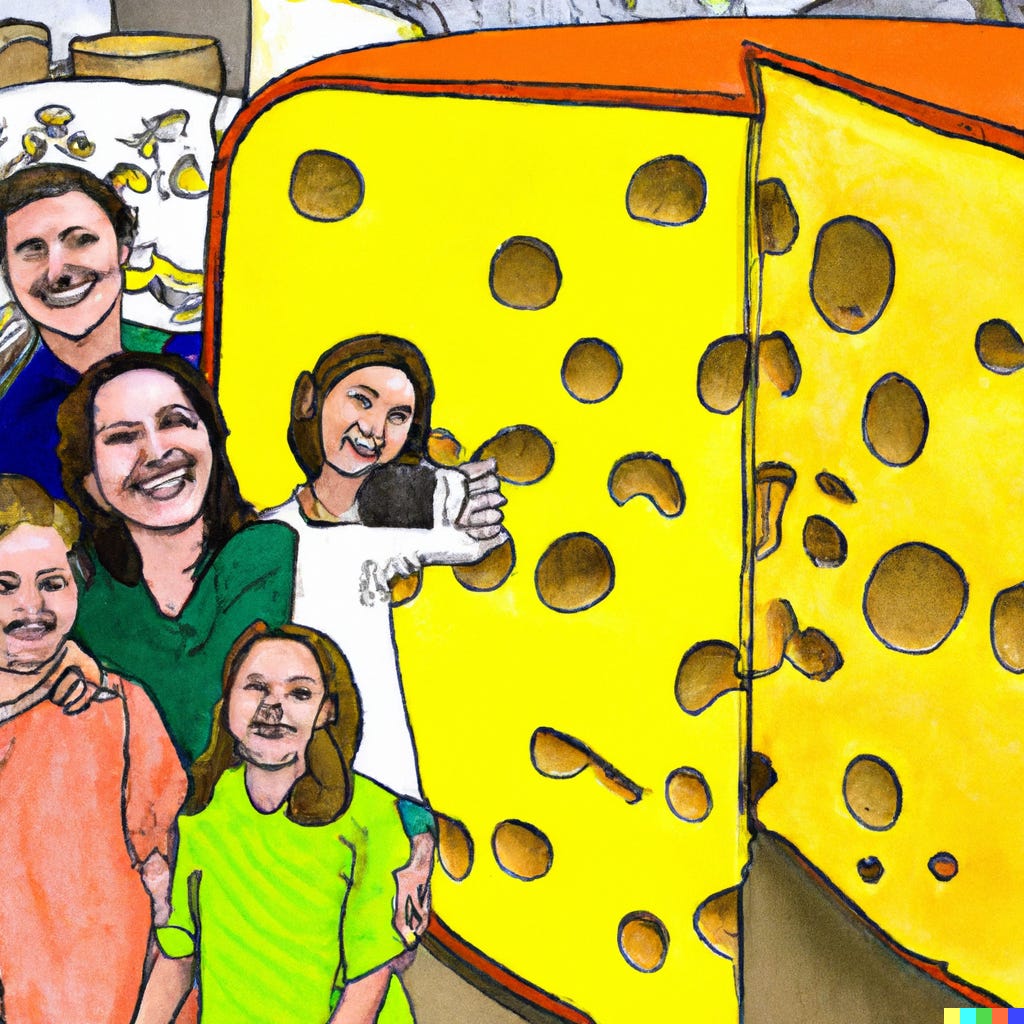
When you hold up a recent Galaxy, have people in front of you and say “Cheese,” out loud, the camera shutter automatically goes off. Really!
How do you get to do this? Open the Galaxy camera app, click the gear icon at the top left and scroll down to “Shooting Methods.” Here, click on “Voice Commands,” where you have five cool choices that are only available if you click on the tab.
Now, you can snap the shutter hands free, by simply saying “Smile” “Cheese” “Capture” or “Shoot,” aloud and record videos by saying those two words.
What a cool feature. This is especially effective when making a Selfie shot and even better than my usual timer tip on the iPhone, the one where I put it on ten seconds to compose my shot, and countdown to the camera snap. Here, you frame it and all you have to do is now say one of those magic words. And you still get two seconds to prepare for the shutter snap. Thank you Samsung.
Floating Shutter
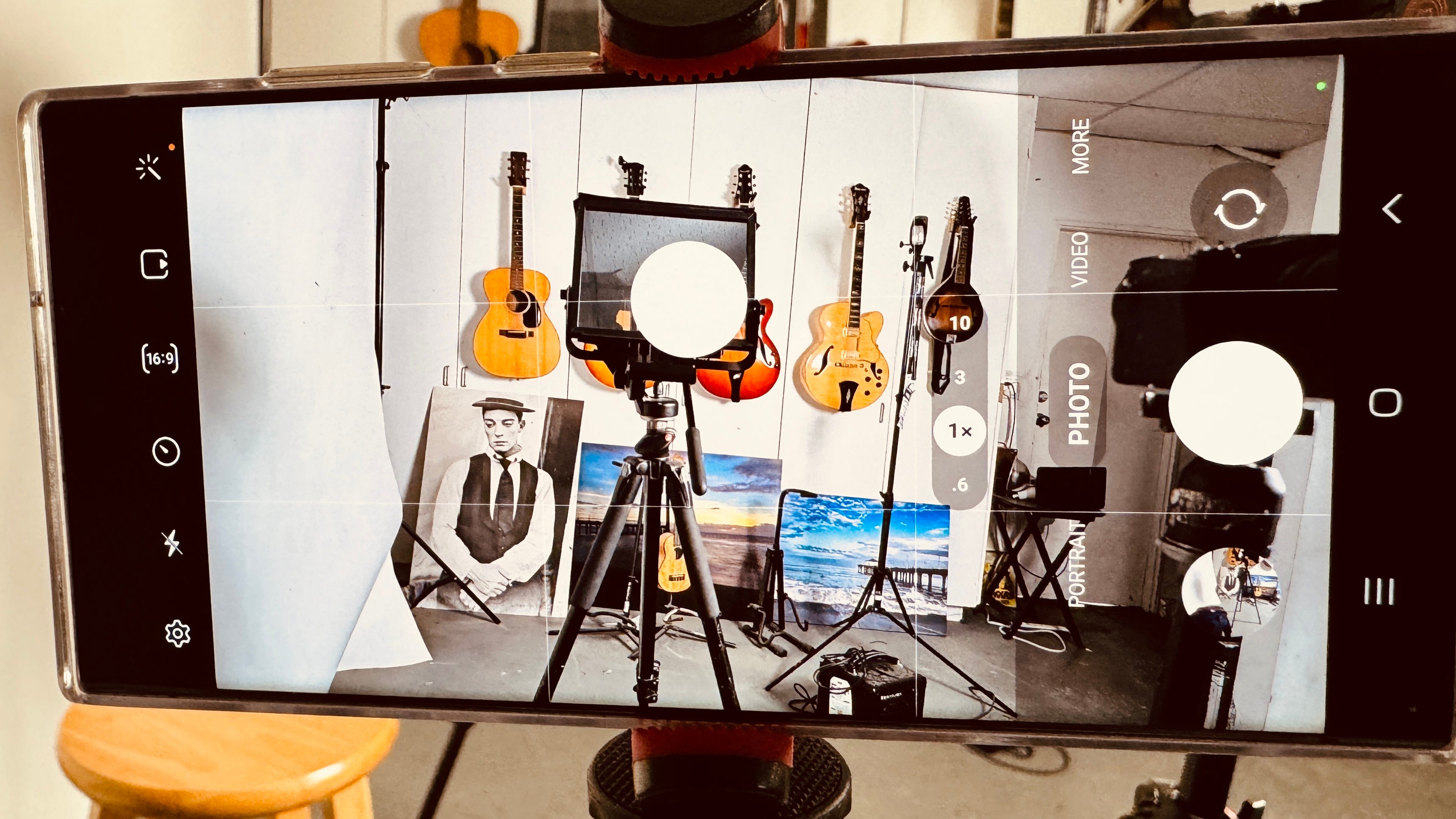
This simply lets you add a second shutter button anywhere on the screen, beyond the traditional right side. This comes in handy for selfie photographers who don’t use the timer or voice activation, and can now more easily reach for another way to snap the shutter. I don’t see any other reason for it beyond this, but I’d rather have it than not.
Show Palm
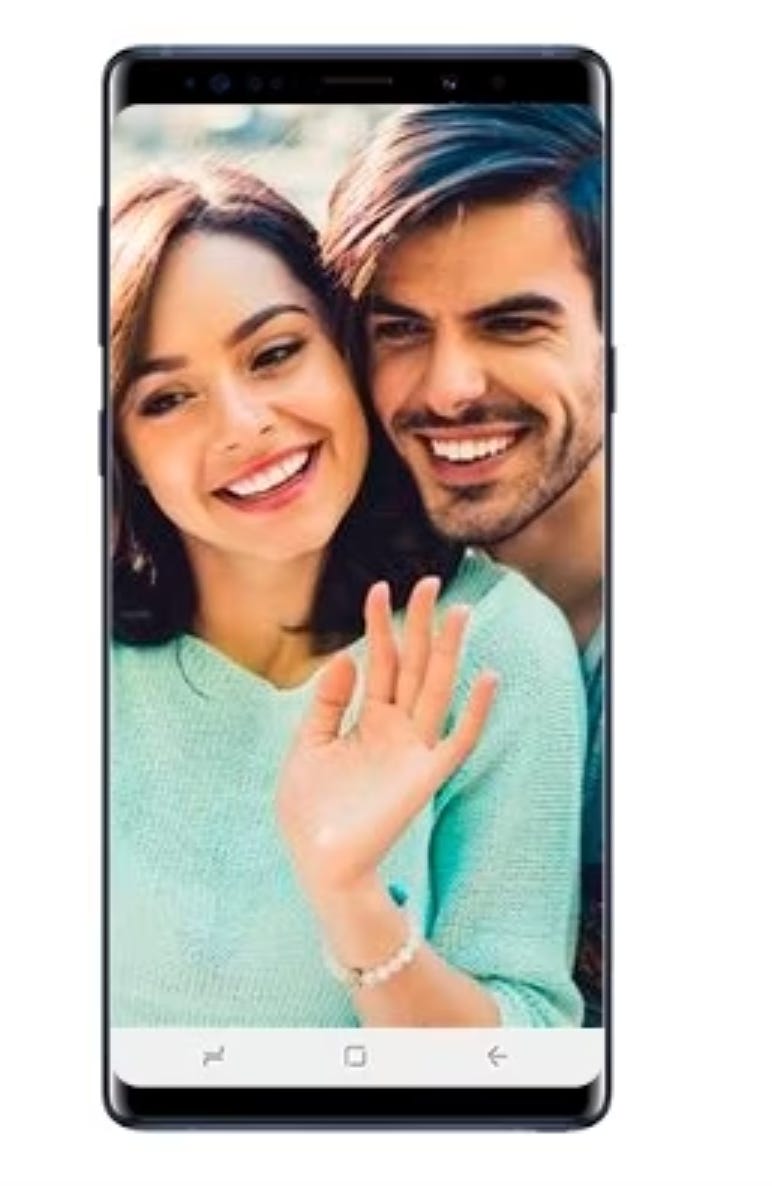
Another different way to snap a selfie is by showing your palm in the frame. Samsung gets the message and clicks the shutter for you. To click it on, go to the Settings in the Camera app, tap Shooting Methods and “Show Palm.”
Shot suggestions
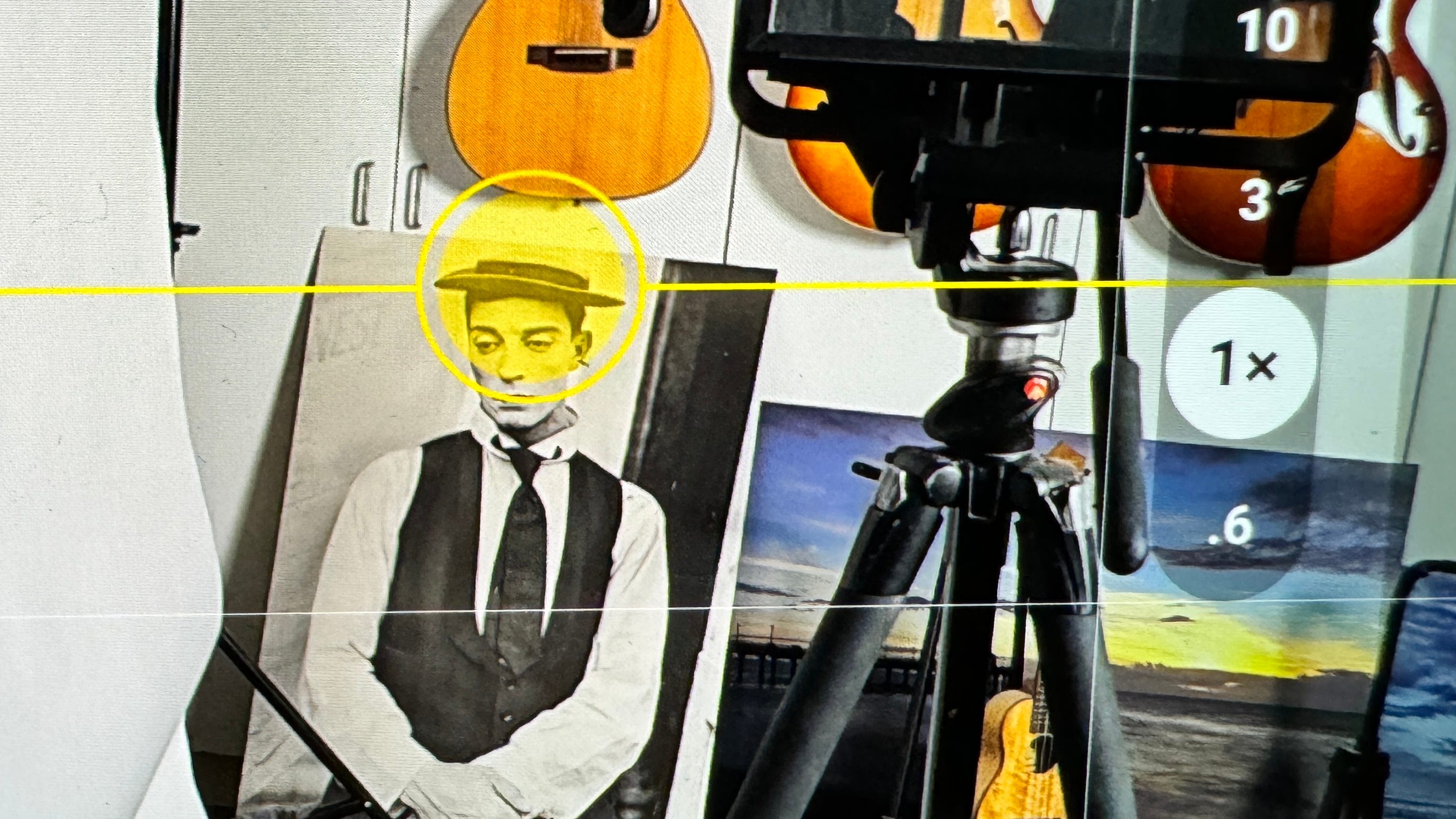
Samsung jumps to the rescue to help you compose your shot. Simply put, you frame it like normal, and a little button will appear, telling you where to position the camera. My rule is that there are no rules, and if you want to take the shot from the left or right, that’s your subjective decision. But it doesn’t hurt to hear what Samsung thinks—the input could be valuable for many people. You can still snap the shutter any way you so choose.
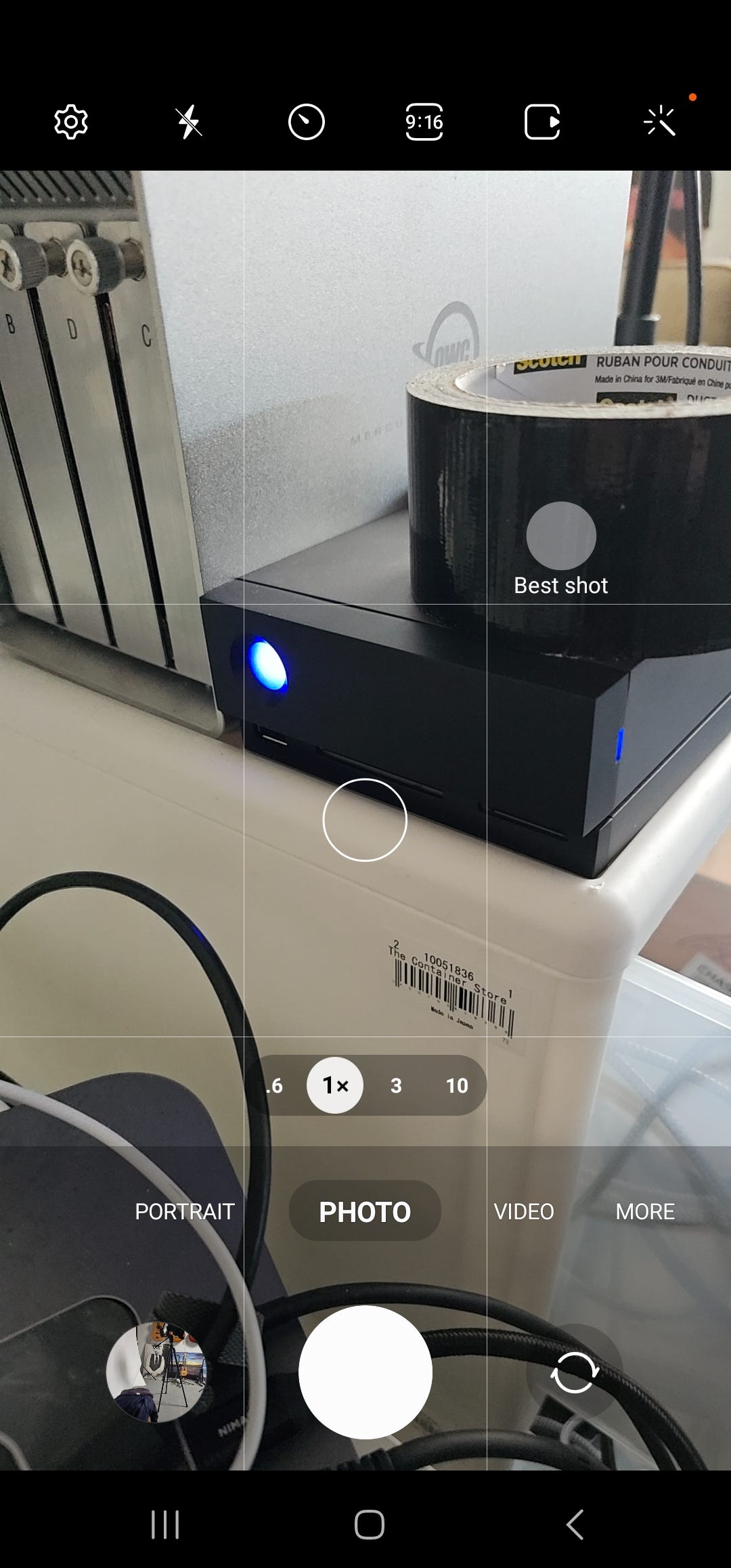
Grid
This feature is also available on an iPhone, a nine square grid to help you line up and better compose your shot. This is found in the Camera Settings, under General. Just click on Grid Lines to make the lines appear.
Advanced Picture Options
If you’re constantly running out of space on your phone and want to take photos with a smaller file size, Samsung, similar to Apple, offers the ability to use the newer HEIF format vs. the more widely accepted JPG. Unlike Apple, Samsung offers this as a feature you have to turn on, by going to the Advanced Picture Options section of Settings.
You can also choose here to shoot in JPG or RAW or both at the same time.

Have fun with your Galaxy phone. The features noted are available on the Galaxy S23—I’m not sure if they’re available on previous editions, and Samsung doesn’t a good job online of spelling it out. My best advice is to check the Settings. Any questions, just reach out to me.

Thanks as always for taking the time to read and let me hear from you.